Showing posts with label Incredimail. Show all posts

Friday, August 27, 2010

New Twilight Letter

Made another new Twilight letter the other day. Quick note that you'll probably see alot more creations with a Twilight Saga theme or those of my favorite music artists and other movies/tv shows. Habit really and I need to restock my Incredimail Stationery, LOL.

Incredimail Stationery - Twilight - Kristen & Rob

The blank tag is included in the footer of the letter for everyone! Enjoy!

Saturday, August 21, 2010

Back to Creating I go! YAY!

It really has been quite a while, hasn't it? Sorry... guess between hubby getting sick last summer, job getting insane, and being burnt out, and then my computer crashing a back in July (and I lost all my 2009 stuffies!), I was just ... bleh... ya know?

Anyway, made something simple tonight...

Incredimail,Twilight Saga which can be downloaded HERE - first_kiss_2010.imf.

So I'm going to throw this up and then work on my blog layout because it's old and outdated. LOL


Sunday, November 30, 2008

Winter Wonderland Blog Train

YAY! It's time!!!


Here's my part of the Winter Wonderland Blog Train:
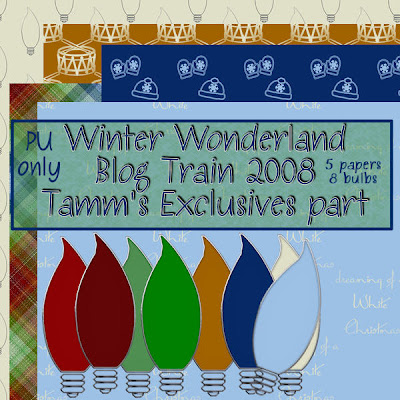
4shared download
(p.s. could you leave me a comment and let me know if I did okay?)

Saturday, October 11, 2008

Stare At You Tutorial

Stare At You
Tutorial by Tammtamm, aka Tamm’s Exclusives
Any similarity to other tutorials is purely coincidental


Template by Heartbeatz Creationz
Scrap set is My Desire by Melissa of Sentimental Style


Supplies needed:
Above mentioned template,

two (2) images,

song lyrics ,and

two papers, a journal paper, and elements from the same Scrap kit or designer.

A Mask (I’m using 100maskkelsWWA.jpg) – you want to use a mask that gives a mist/soft background to the template and doesn’t become the focal point of your creation.


No outside filters needed (Yay!)

Header

1.) Open the Template in Paint Shop Pro, Shift+D to duplicate it, close original.


2.) Open your images, duplicate them, and close the originals as well.


3.) Okay, back to the Template – close all layers on your layer palette except for the bottom grey rectangle. Select your magic wand then click on the grey box to select the box.


4.) Activate the image you want to be beneath the paper and lyrics layers. Go back to the template.


5.) Edit, paste, paste as new layer.


6.) Now select your Move tool and move the image so that what you want is inside the selection box. Resize your image if necessary. If you’ve resized the image, sharpen it.


7.) Selections, Invert, Delete, Select None.


8.) Over on the Layer Palette, delete raster 11, open Raster 4. You’ll need to move this raster (frame to your image) to the left a little. You can do that with your move tool by placing your move tool on the frame and moving to the left with your mouse.


9.) Add a drop shadow of V&H = 0, Opacity = 50, Blur = 12.00, color = black. (settings remain the same unless mentioned throughout the tutorial.


10.) Layers, Merge, Merge Down


11.) Activate Raster Layer 12 and repeat steps 4 through 10, however, use the Image that is to be on top of all the other layers.


12.) Open your Journal Paper, Copy


13.) On the Template, close Raster Layer 12 then activate Layer 2.


14.) Select the grey box with your Magic Wand.


15.) Edit, paste journal paper. With your Move Tool, position the journal paper to your liking, selections invert, delete. Select none.


16.) Go to your Text Tool and choose your font (mine is called Be Safe, size 20, Foreground color = black, background color is null). Enter the Lyrics in your text box and select okay. Over on the layer palette, make your text into a raster layer.


17.) Go back to layer 2 (you may have to close your journal & text layers for a moment) and select it with your magic wand. (Open your journal paper and text if you had to close them.)


18.) Position your text the way you want on top of the journal paper. *Note – if you just typed out a few lines to your lyrics, copy your text layer and position the copy layer at the bottom of the journal paper. Drop shadow both text layers, changing the opacity to 25. 19.) Activate Layer 5 and reposition the text if necessary. On Layer 5, add the drop shadow but change the Opacity back to 50.


20.) Merge Raster 5 down to your text layers and then down to the Journal Paper layer. Delete Raster 2.


21.) Close all layers except Raster 6.


22.) Open a scrap paper, edit, copy.


23.) Back to your template.


24.) With your magic wand, select your dark grey layer (layer 6)


25.) Edit, paste as new layer, resize your paper to you liking, position it within the selection to your liking, Selection, Invert, Delete. Select, None.


26.) Activate Raster 7, Drop Shadow.


27.) Delete Raster 6.


28.) Merge Raster 7 to Raster 2


29.) Create new Raster layer, flood fill with white, move to the bottom (underneath the template.


30.) Open another Scrap Paper, edit, copy


31.) Back to Template, paste as new layer above your white layer.


32.) Load your mask from disk.


33.) On Mask in layer palette – Merge Group.


34.) Activate/open all layers. Position your top image if needed to the right, but center it on top of your lyric box if possible.


35.) Add any elements, additional text, and your watermark.


36.) File, Export as jpg optimizer between 15 and 20


37.) File, Save As psp file to same folder that you exported the jpg to.


Your Header is done, but don’t close it yet. You still need it.

Side Border


1.) Close the white layer, mask layer, bottom photo layer, and any elements and text and watermark. Make sure one of the Active layers is selected.


2.) Edit, Copy Special, Copy Merged, Edit, Paste as new image.


3.) Position your merged image to the left.


4.) Canvas size – Width = 1600, height = 430 (you can change these to your liking), Left center. Leave some space between the image and the edge.


5.) Add new raster layer, flood fill white, move to bottom


6.) Add new layer, add your watermark.


7.) File Export Jpg optimizer 15 – 20

Taggie

1.) Back to the Header


2.) Open all layers, delete any text, Crop excess white space if necessary. Merge Visible


3.) Resize – Smart size to 75% - you want it to be less than 400 x 400.


4.) Sharpen


5.) File Export jpg optimizer 15 – 20


You’re done now. All that’s left to do is put it together in Letter Creator!


Thanks for trying out my tutorial. Please link back to me at http://tammsexclusives.blogspot.com/. Thank you!


I would love to see your creations. Please feel free to email them to me at tamms.exclusives@gmail.com.


Tamm


An example of the Incredimail Letter...

Saturday, September 20, 2008

New Scrappy Creation - 09-20-08

    
Used a template by Mari and the Afternoon Picnic Scrapset by Melissa for this set - a tag and matching Incredimail letter.

Sunday, September 7, 2008

My First Tutorial - Tamm's Summertime


Tamm's Summertime Tutorial

This has been tested by me in PSP12 and PSP8.10.
No Plugins/filters needed unless you wish to get creative on me.
Supplies that will be needed:

(note...for my letter and tag, I used paper and elements by Melissa of Sentimental Style. I used pieces from both her Summer Rain and Thoughts of Spring kits. Thank you Melissa.)

1.) Open everything in PSP, minimize everything except for the template.

HEADER
2.) Activate the top layer, edit, copy, edit paste as new image, minimize.

3.) Select background layer, Image, Canvas size, H & W set to 600, center button placement.

4.) Click on your frame layer (now s/b your top layer).
- Select your Magic Wand
- While holding down your shift key, click inside each of the three frames. You should now have 3 boxes.
- Selections, Modify, Expand, 5

5.) Activate your graphic/image. Shift+D, close original.- Edit, copy your graphic/image.6.) Activate template, copy, paste, paste as new layer.
- Place layer beneath frame.
- Resize so that what you want of the image is inside the frame(s),
- Selection, Invert, Delete,
- Select None.
- Adjust, Sharpen Image, Sharpen if necessary

7.) Select Frame layer
- Effects, 3D Efects, Drop Shadow (these settings will stay the same)
- Note: you should change the opacity to your liking. This is just a guideline.

  • V & H = 0
  • Opacity = 50
  • Blur 12.00
  • Color = Black

8.) Activate your pattern Paper, edit, copy. Minimize the paper.
- Back to Template.
- With your magic wand, select the Middle rectangle layer
- Edit, Paste as new layer.
- Resize paper if necessary to get the pattern just right for your look.
- Selections, Invert, Delete.
- Select None.- Add your Drop Shadow.
- Delete the layer that says Middle Rectangle.

9.) Repeat the steps in 8 for your Bottom Rectangle layer.

10.) Activate your Journal block/paper.
- Edit, Copy
- Edit, paste, paste as new layer on template.
- If color of block/paper isn't similar or doesn't complement the color scheme of your header, change it by adjusting the hue.
- Add text to the journal block/paper (text size between 14 and 18).
- Add drop shadow used above to text. Merge down.
- Move Journal block/paper to at least behind the frame and graphic layer and resize. Add drop shadow to the journal block/paper.

11.) Activate your element/embellishment and place behind the right side of the graphic/frame. Resize if necessary and use the same drop shadow.

12.) Add new layer and your watermark. 12a.) Add any additional text (i.e. Good morning, Summertime, Yada yada yada)

13.) File, Export, JPEG Optimizer of 15 or 20.

Don't close your header we still need it.

Side Border
14.) Activate your selection tool.
- You need a selection of about 37 by 216 of the two papers so on your layer pallet, close out all layers except for the two papers. Activate the top paper.
- Select Custom Selection.

  • Top = 228
  • Left = 110
  • Right = 147
  • Bottom = 444

15.) Edit, Copy Special, Copy Merged, Edit, Paste, Paste as new image

16.) Effects, Image, Seamless Tile, Edge, Vertical, 50, 50

17.) Back to template, close out top paper, select bottom paper, edit, copy.

18.) Back to your new image, edit, paste, paste as new layer, move to bottom, duplicate layer.

19.) Make sure your patterned paper is the top layer and then image, canvas size, Height = 216 and width set to 1280 or however wide you want it. Placement - Left should be set to 10, leave Right alone as it will self-adjust.

20.) close out top layer and select bottom paper, duplicate layer.

21.) Carefully select one of the bottom two layers with the move tool. Then using your left arrow key, move to the left five times. Repeat with the other layer, only move to the right five times. Merge the two layers.

22.) Seamless tile, same as before.

23.) Effects, 3D Effects, Drop shadow on new layer.

24.) Seamless tile drop shadow layer, same as before. Highlight the solid paper layer, merge down.

25.) Highlight top layer, add drop shadow, then seamless tile the drop shadow layer. Highlight top layer, merge down.

26.) Add New Layer, move to bottom, flood fill with white.

27.) back to template/header image. Highlight Journal block/paper. Edit, copy.

28.) Back to side border, paste as new layer, move and position between the patterned paper layer and the solid border layer.

29.) Repeat steps 27 and 28 if you want to bring over the other element.

30.) If you wish to add text, rotate right 90 degrees, add layer, add your text and drop shadow, add another layer, add your watermark. Then rotate left 90 degrees, merge all. File, export, JPEG optimizer - same as header. Close this out. You are done with it.

Siggie Tag
31.) Back to your header. Open all layers.

32.) Image, Resize, set width to 300 pixels, your height will self adjust.

33.) Add your watermark if needed and save a blank taggie (File, Export, JPEG Optimizer, same settings as before) first before you add your siggie text to it.

34.) Open the blank tag you just made.

35.) Add your text... Use color(s) that complement your header. The drop shadow I usually use for my siggie texts is V at -2, H at 2, Opacity at 100, Blur at 2.50 and color = Black (0,0,0).

36.) Save your taggie.

You are now done with everything, now go and put your header and side border together in Letter Creator and don't forget to add in the credits to those who made the scrappy shtuff and the template.

I call this my "Summertime" Tutorial. Please link back to http://movies.groups.yahoo.com/group/twisagasnt/ or http://tammsexclusives.blogspot.com/ please. Thank you.


Sunday, August 17, 2008

New Scrappy creation - 08-17-08

So this morning I decided that I wanted to make an Incredimail Stationery and tag in honor of Michael Phelps going 8-for-8 at the Olympics in Beijing. The final win coming last night (erm, today for Beijing). LOL


So I've spent the better part of 3 and a half hours making this because I had to find just the right scrappy goodness... and all the scrappy goodness I used in this set is by Melissa of Sentimental Style - I love her work - it's wonderful. I used a piece or two from one of five scrap sets (all freebies that have been available from her at one time or another):


Fun In The Sun

Ocean Mist

Seashore

Memorial Day

Patriotic


Anyway, that's how I spent my Sunday morning... I didn't use a tutorial either... and I know my taggie is a little squish/off... but I can't seem to fix it. LOL

Sunday, March 16, 2008

Spring Fling results - Kit by Melissa of Sentimental Style


Made another Incredimail letter and taggie set today using a kit by Melissa. This is her Spring Fling kit.

I loved the colors... I wanted something that celebrates spring for me using this tulip picture I found surfing the web. Purple is my favorite color. I really like how this turned out.

I used three different egg shaped masks that I snagged a while ago via groups I'm in and a gabee mask of several easter eggs on some grass.

The font for the siggy is Springtime. The font for the "list" and my "made by" is "Denasprint".