Monday, January 19, 2009

Feb. Wallpaper Freebie

I made a wallpaper for February freebie while making my new Incredimail Letter and taggie. The Date bit is from Misty Cato Designs, photo from WWW (JustJared.com) and I used Acrylic Frames and the Love Me Tender scrapkit by bonscrapatitdesigns. It's made for 1600 by 1060 resolution (my 22 inch monitor). Thank you to both Misty and Linda for their wonderful designs! I always snag but am guilty of not leaving comments alot lately and for that I apologize. They both do wonderful work so if you visit them, be sure to leave them some major love!

Download no longer available. SOrry
Hope everyone likes it!

Sunday, January 11, 2009

New Photo Collage


I'm really enjoying this whole picture-a-day thing. The scrappy goodness I used for this layout is:

- Template #6 available from scrapbookom.blogspot.com.

- Scrap Kit I LOVE DENIM by Seachell except for the...

- Yellow-Lined paper. This is from Viva Artistry's "Beginnings" kit.

Thank you to each of these designers.

Fonts used were Sharpie and Pupcat.

The original size of this is 3600 x 3600, but I saved it down to 1800 x 1800 so that you could see it somewhat if you wanted to.

New week starts tomorrow... wonder what will come of my daily photo experiment. Hope everyone has a wonderful week! I'm off to finish watching the Steelers/Chargers football game.

Tempt Tutorial Try

Tried this tutorial and had to share my results... Scrap Paper is from the Sparkleberry set from gottapixel.net - it's a lovely collab set that you can collect daily right now!

The Tutorial is called Tempt and is by Thru Sugar's Eyes - You can find the tutorial HERE.
I've also made an Incredimail Letter to match the taggie... but didn't make a preview for here. It's 1600 x 1050 though to match my 22 inch monitors.
I've also begun a project that I've learned that in the Scrappy World many are already doing... They call it a 365 project. I call it a daily photo thingy. LOL... anyway... I started it last week as an end of dec/beginning of jan thingie and my results were ... ehhhh...
I've been collecting different freebie 365 project templates but I actually do like the results of the first week. This is all just new to me and I'm trying to get it to motivate me to create more in the Scrappy World as well as with my writing.
Anyway... off to play Domesticated Goddess - a rare thing for me... there's the kitchen to clean, a Ham Dinner to prepare, Laundry to be done and then both the Eagles football game and the Steelers football game to be watched before the Season premiere of 24! AWESOME!!!!! Busy busy day ahead!

Sunday, December 7, 2008

Christmas Convoy 2008 - OOPSIE on me - Freebie

Here's the kit I worked on for a Christmas Convoy that I didn't sign up for in time. 16 papers and 16 elements (not 15 like the example says. LOL). This was the first kit I ever tried to make... thanks to everyone who continues to leave comments and words of encouragement. I hope you all find a use for the items in this kit if you download them. Thanks.


Saturday, December 6, 2008

Winter Wonderland Blog Train Add On - Bookplates

Here's the other add on for my part of the Winter Wonderland Blog Train. Thank you again to everyone that's left comments for me. I do appreciate it.

The stuff that I did for the Christmas Convoy I didn't sign up for will be up tomorrow night. Until then, here's the other freebie I did for the Winter Wonderland Blog Train. Enjoy!

Friday, December 5, 2008

Winter Wonderland Blog Train Add On - Bottle Caps

First I wanted to thank everyone that has left me comments and thank yous and tips both here on my blog and at 4shared about my Winter Wonderland part. I have had alot of fun learning how to make the items I put into the kit and while I know that I'll never be as good as alot of the wonderful scrappers we have available to us world wide, I'm thrilled and honored and humbled by everyone who's downloaded my part. Okay enough sappy cuh-rud from me tonight... Onto the new freebie!

I have an add on to my part of the Winter Wonderland blog train I took part in. 9 bottlecaps. Drop shadow is not on the actual tubes.


I will be adding an additional add on to the kit later this weekend as well as another freebie mini-kit that was to be a part of a Christmas Convoy, however, silly me didn't sign up with the group in time... oh well... I'm still putting up the freebie... Be sure to check back late Saturday for the first of these two additional freebies!

Sunday, November 30, 2008

Winter Wonderland Blog Train

YAY! It's time!!!


Here's my part of the Winter Wonderland Blog Train:
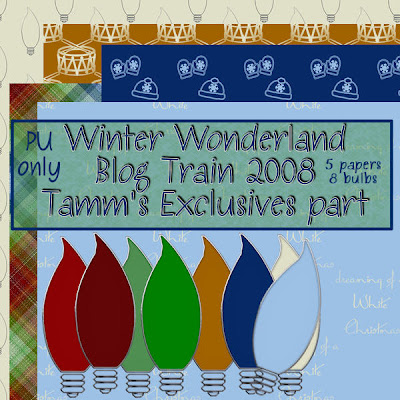
4shared download
(p.s. could you leave me a comment and let me know if I did okay?)

Okay so one Christmas Convoy I won't be a part of...

It took me a while to find this Christmas Convoy I thought I signed up for at the beginning of November, however... apparently I was too late to sign up for it even though the deadline was yesterday.

Not to fret... Seeing as how I already snagged the color swag at the beginning of the month, I made some stuff for it and will be posting those throughout the month then as freebies. I will encourage anyone who stops by my blog though to check it out too because I can be good like that.

In the meantime... the Winter Wonderland Blog Train I did sign up for in time with leaves the station at Midnight my time... 25 desginers total (including me... YAY!) Hope everyone has fun snagging!

Thursday, November 27, 2008

Can hardly wait for Dec. 1st!

I'm giving you a preview of my part of a blog train... hehehe...

Come back after midnight Eastern USA time for the link and more
info on the train!
CHOO CHOO!!!!

Saturday, November 15, 2008

WInter Wonderland Blog Train

I've joined this blog train and wanted to let y'all know... in case anyone actually reads this blog. LOL...

Anyway... stay tuned... I'll be posting the list of participating creators once I get it...

Tamm


Thursday, November 13, 2008

Made my first flair - Freebie for ya! Christmas Convoy

Okay, here's my dilemma... I joined a Christmas Convoy and thought I saved the website and everything so that I could go back to it, but I can't find it. Anyway. I've got the color swatch and have tried my hand at papers and a few glass pieces and now a flair. To show off the colors a little, I thought I'd share the flair I made. The wording on the flair says "Lighting up the Holidays". It's on my 4Shared and is 800 x 800 in PNG format. You can get it HERE.

The Cluttered Table: I Bit A Pillow - New Free Kit

The Cluttered Table: I Bit A Pillow - New Free Kit

Attention all you TWILIGHT lovers! Come check out this wonderul, fabulous freebie at "The Cluttered Table"!

Tamm

Tuesday, October 28, 2008

Journal Bubble Freebies

So... one of the tutorials in one of the groups I am in was to make puffy journal paper elements... so I tried it... not bad for my first try... anyway... thought I'd post them up here for anyone that wanted them... There's a total of four - three puffy cloud shaped ones and one squarish/rectangular one.

Download link is HERE.
Hope you like them and can use them.

Just a note

Busy busy end of the month for me as I get ready for November and National Novel Writing Month (NaNoWriMo). 50,000 words in 30 days... I've "won" every year since 2003... this year's goal... have something worthy of letting others read. Also in November - TWILIGHT is released.

My Richard (Okay, so he's not MY Richard... but he is my favorite musical artist - EVER), aka Richard Marx is releasing new music... and according to his website... it'll occur this Friday around 1pm... gggrrrr... I want an actual, physical CD in my hands... but then again... new RM Tuneage to have as background music during NaNoWriMo = PRICELESS. So I'll take what I can get! LOL

Currently working on:
- trying to learn how to do some "Elements" for a Christmas Blog Train or two
- working on a new tutorial I hope to have up before Nov. 1st.

Otherwise, I'm in limbo while awaiting the outcome of the World Series.

Oh and trying to find some tutorials for Twilight Saga Stats N Tags as well as a freebie scrap. Am going to have to find a scrappie a week I think to be "Scrappie of the month" for the group. That's always fun.

Just wanted to update the very few that stop by here - THANK YOU for that, btw! LOL

Saturday, October 11, 2008

Stare At You Tutorial

Stare At You
Tutorial by Tammtamm, aka Tamm’s Exclusives
Any similarity to other tutorials is purely coincidental


Template by Heartbeatz Creationz
Scrap set is My Desire by Melissa of Sentimental Style


Supplies needed:
Above mentioned template,

two (2) images,

song lyrics ,and

two papers, a journal paper, and elements from the same Scrap kit or designer.

A Mask (I’m using 100maskkelsWWA.jpg) – you want to use a mask that gives a mist/soft background to the template and doesn’t become the focal point of your creation.


No outside filters needed (Yay!)

Header

1.) Open the Template in Paint Shop Pro, Shift+D to duplicate it, close original.


2.) Open your images, duplicate them, and close the originals as well.


3.) Okay, back to the Template – close all layers on your layer palette except for the bottom grey rectangle. Select your magic wand then click on the grey box to select the box.


4.) Activate the image you want to be beneath the paper and lyrics layers. Go back to the template.


5.) Edit, paste, paste as new layer.


6.) Now select your Move tool and move the image so that what you want is inside the selection box. Resize your image if necessary. If you’ve resized the image, sharpen it.


7.) Selections, Invert, Delete, Select None.


8.) Over on the Layer Palette, delete raster 11, open Raster 4. You’ll need to move this raster (frame to your image) to the left a little. You can do that with your move tool by placing your move tool on the frame and moving to the left with your mouse.


9.) Add a drop shadow of V&H = 0, Opacity = 50, Blur = 12.00, color = black. (settings remain the same unless mentioned throughout the tutorial.


10.) Layers, Merge, Merge Down


11.) Activate Raster Layer 12 and repeat steps 4 through 10, however, use the Image that is to be on top of all the other layers.


12.) Open your Journal Paper, Copy


13.) On the Template, close Raster Layer 12 then activate Layer 2.


14.) Select the grey box with your Magic Wand.


15.) Edit, paste journal paper. With your Move Tool, position the journal paper to your liking, selections invert, delete. Select none.


16.) Go to your Text Tool and choose your font (mine is called Be Safe, size 20, Foreground color = black, background color is null). Enter the Lyrics in your text box and select okay. Over on the layer palette, make your text into a raster layer.


17.) Go back to layer 2 (you may have to close your journal & text layers for a moment) and select it with your magic wand. (Open your journal paper and text if you had to close them.)


18.) Position your text the way you want on top of the journal paper. *Note – if you just typed out a few lines to your lyrics, copy your text layer and position the copy layer at the bottom of the journal paper. Drop shadow both text layers, changing the opacity to 25. 19.) Activate Layer 5 and reposition the text if necessary. On Layer 5, add the drop shadow but change the Opacity back to 50.


20.) Merge Raster 5 down to your text layers and then down to the Journal Paper layer. Delete Raster 2.


21.) Close all layers except Raster 6.


22.) Open a scrap paper, edit, copy.


23.) Back to your template.


24.) With your magic wand, select your dark grey layer (layer 6)


25.) Edit, paste as new layer, resize your paper to you liking, position it within the selection to your liking, Selection, Invert, Delete. Select, None.


26.) Activate Raster 7, Drop Shadow.


27.) Delete Raster 6.


28.) Merge Raster 7 to Raster 2


29.) Create new Raster layer, flood fill with white, move to the bottom (underneath the template.


30.) Open another Scrap Paper, edit, copy


31.) Back to Template, paste as new layer above your white layer.


32.) Load your mask from disk.


33.) On Mask in layer palette – Merge Group.


34.) Activate/open all layers. Position your top image if needed to the right, but center it on top of your lyric box if possible.


35.) Add any elements, additional text, and your watermark.


36.) File, Export as jpg optimizer between 15 and 20


37.) File, Save As psp file to same folder that you exported the jpg to.


Your Header is done, but don’t close it yet. You still need it.

Side Border


1.) Close the white layer, mask layer, bottom photo layer, and any elements and text and watermark. Make sure one of the Active layers is selected.


2.) Edit, Copy Special, Copy Merged, Edit, Paste as new image.


3.) Position your merged image to the left.


4.) Canvas size – Width = 1600, height = 430 (you can change these to your liking), Left center. Leave some space between the image and the edge.


5.) Add new raster layer, flood fill white, move to bottom


6.) Add new layer, add your watermark.


7.) File Export Jpg optimizer 15 – 20

Taggie

1.) Back to the Header


2.) Open all layers, delete any text, Crop excess white space if necessary. Merge Visible


3.) Resize – Smart size to 75% - you want it to be less than 400 x 400.


4.) Sharpen


5.) File Export jpg optimizer 15 – 20


You’re done now. All that’s left to do is put it together in Letter Creator!


Thanks for trying out my tutorial. Please link back to me at http://tammsexclusives.blogspot.com/. Thank you!


I would love to see your creations. Please feel free to email them to me at tamms.exclusives@gmail.com.


Tamm


An example of the Incredimail Letter...

Sunday, September 28, 2008

Never Give Up on your Dreams Tutorial

“Never Give Up On Your Dreams” Tutorial
created by Tammtamm, September 28, 2008
any similarities to other tutorials is purely coincidental
for personal use only

- Supplies needed: Template 21 by : Wild Creationz
- A scrapkit – I used pieces from the freebie download a day megakit – Autumn Rhapsody, available at DigitalDivasDesigns.com during the month of September, 2008. The paper and elements specifically were created by BitsOScrap.

You’ll need one paper ( may need to resize it to at least 1280 x 1024 in size) and several elements (i.e., buttons, flowers, ribbons, etc), and a photo at least 600 x 600 in size.

Drop shadow settings will be 0,0,100,12.00 black unless otherwise specified in specific steps below.

1. Open up supplies and your photo.


2. Duplicate (shift+d) the template, minimize the original


3. Back to duplicate template, remove watermark layer


4. hide both heart layers


5. go to your photo and edit, copy


6. back to template, edit, paste, paste as new layer


7. position the photo beneath both “flag” shapes and keep it active.


8. select your move tool and position the photo so that the central focus of the photo will be on the light grey “flag” shape. Note: you may want/need to hide or unhide your “flag” shapes and you may need to resize your photo.


9. Once you have positioned your photo to your liking, duplicate the photo layer and move it above the flag shapes. Hide it for now.


10. Make sure both the duplicate photo layer and the lighter grey flag shape are hidden and activate your darker grey flag shape (you may need to unhide it too).


11. Activate your magic wand and select the darker grey flag shape.


12. Move your original photo layer above the darker grey flag shape. Activate the original photo layer.


13. Selections, Invert, hit your delete key.


14. Adjust, sharpen once if necessary.


15. Selections, select none.


16. Delete dark grey flag layer and hide the photo flag layer you just made.


17. Unhide the lighter grey flag and the duplicate photo layer.


18. Repeat steps 11 through 15.


19. Delete light grey flag layer


20. Add a drop shadow to both photo flag layers of 0,0,100,12.00 – black.


21. Now hide both photo flag shape layers and activate the big circle


22. Activate your scrap paper and duplicate it (shift+d), minimize original (you’ll need it for the side border)


23. Go back to your duplicate scrap paper. Smart Size it to 20% if necessary.


24. Edit, Copy – back to your template and the dark circle layer


25. Select your magic wand and then click on the dark circle to select it.


26. Edit, paste, paste as new layer


27. Make sure your scrap paper layer is active


28. Selections, invert, delete


29. Selections, select none


30. Add your drop shadow


31. TIP: If the paper your using is light in color, jazz it up with a brush in the color of black


32. Delete the dark circle layer


33. Unhide the heart layers and use them as guides to place your scrappy elements.


34. Add new layer


35. Place your watermark on new layer


36. Add text if you wish


37. Layers, merge, merge visible


38. Crop white space if necessary.


39. Export to jpg file. This is your header!


40. TIP: before I make the taggie, I also Save As pspimage so that I have all the layers to edit/play with for the tag and the side border.

TAG:

41. Undo to before you add your watermark layer


42. Smartsize all layers to 65% (height no taller than 400 pixels)


43. Merge visible


44. Add new raster layer, place your watermark.


45. Export as JPG file – you now have your blank taggie


SIDEBORDER:

46. File, New – 1280 x 1024 (or your preferred screen/letter size), transparent, ok.


47. Activate your original scrap paper, duplicate, close original


48. Edit, Copy


49. Go to new image, edit paste, paste as new image – move the paper over so that your right edge is at 0x200 at the top on the new image – TIP: I usually magnify my image to about 800 percent to be precise on placement on the rulers.


50. Add a drop shadow of 0,5,100,12.00 – black.


51. Activate your header (the .pspimage we made of the header should still be open)


52. Edit, copy special, copy merged


53. Go to new image and paste as new layer, position it in the lower right hand corner of your new image and place that layer between the scrap paper layer and the bottom layer.


54. Change the opacity of the “header” layer to between 50 and 65%. – whichever your liking.


55. Back to your scrap paper layer. Make sure it’s active.


56. Go back to your Header psp image and pick and chose from your element layers, copy them individually and bring them over to the new image. Edit paste as new layer and then position them where you want them on top of your scrap paper.


57. TIP: If you used brushes on your Header and want to use them here, place the brushes on the paper BEFORE doing step 56.


58. Once everything is to your liking, add a new layer and add your watermark.


59. Export as JPG file


60. You’re done… now put together in Incredimail and don’t forget to give credit for your scrappy stuff you used, the template and please link back to my blog site - http://tammsexclusives.blogspot.com/! Thanks!

My post below this one is what got me to write the tutorial.
This letter and the tag below it are what I used to sample
the tutorial.

Thanks for looking. Please let me know what you think of my tut!

Friday, September 26, 2008

Never Give Up on your Dreams - Scrappy letter and tag

So... I've had this dream for oh, about 20 years now... and it finally came true on September 23rd. See... when I was a teenager, we couldn't afford concert tickets for me to go see my favorite music group. I promised myself and listed this dream as number 1 on my list that when I could, I would go see this group. Well, about 15 years ago, they broke up... and then earlier this year... they announced a reunion and eventually tour dates and I grabbed the opportunity right up to see them.

This group re-affirmed why I love them so, so much even now. And the concert... it was the best concert I have ever been to... EVER! My seat was closer than I had thought it would be and my camera produced nearly half of the 200 or so photos that I took of the group.

The group ---- New Kids On The Block ... The Venue ----- Izod Center, East Rutherford, NJ

One of those photos I used in a new letter and tag Incredimail set for my group. I used a template by Wild Creationz - number 21 and a few pieces of a Scrappy Megakit called Punchy Summer. The pieces are by: Stephinette, Bea, and Loloden. Here's the sample of the letter.

And here's the taggie.

Saturday, September 20, 2008

New Scrappy Creation - 09-20-08

    
Used a template by Mari and the Afternoon Picnic Scrapset by Melissa for this set - a tag and matching Incredimail letter.

Sunday, September 7, 2008

My First Tutorial - Tamm's Summertime


Tamm's Summertime Tutorial

This has been tested by me in PSP12 and PSP8.10.
No Plugins/filters needed unless you wish to get creative on me.
Supplies that will be needed:

(note...for my letter and tag, I used paper and elements by Melissa of Sentimental Style. I used pieces from both her Summer Rain and Thoughts of Spring kits. Thank you Melissa.)

1.) Open everything in PSP, minimize everything except for the template.

HEADER
2.) Activate the top layer, edit, copy, edit paste as new image, minimize.

3.) Select background layer, Image, Canvas size, H & W set to 600, center button placement.

4.) Click on your frame layer (now s/b your top layer).
- Select your Magic Wand
- While holding down your shift key, click inside each of the three frames. You should now have 3 boxes.
- Selections, Modify, Expand, 5

5.) Activate your graphic/image. Shift+D, close original.- Edit, copy your graphic/image.6.) Activate template, copy, paste, paste as new layer.
- Place layer beneath frame.
- Resize so that what you want of the image is inside the frame(s),
- Selection, Invert, Delete,
- Select None.
- Adjust, Sharpen Image, Sharpen if necessary

7.) Select Frame layer
- Effects, 3D Efects, Drop Shadow (these settings will stay the same)
- Note: you should change the opacity to your liking. This is just a guideline.

  • V & H = 0
  • Opacity = 50
  • Blur 12.00
  • Color = Black

8.) Activate your pattern Paper, edit, copy. Minimize the paper.
- Back to Template.
- With your magic wand, select the Middle rectangle layer
- Edit, Paste as new layer.
- Resize paper if necessary to get the pattern just right for your look.
- Selections, Invert, Delete.
- Select None.- Add your Drop Shadow.
- Delete the layer that says Middle Rectangle.

9.) Repeat the steps in 8 for your Bottom Rectangle layer.

10.) Activate your Journal block/paper.
- Edit, Copy
- Edit, paste, paste as new layer on template.
- If color of block/paper isn't similar or doesn't complement the color scheme of your header, change it by adjusting the hue.
- Add text to the journal block/paper (text size between 14 and 18).
- Add drop shadow used above to text. Merge down.
- Move Journal block/paper to at least behind the frame and graphic layer and resize. Add drop shadow to the journal block/paper.

11.) Activate your element/embellishment and place behind the right side of the graphic/frame. Resize if necessary and use the same drop shadow.

12.) Add new layer and your watermark. 12a.) Add any additional text (i.e. Good morning, Summertime, Yada yada yada)

13.) File, Export, JPEG Optimizer of 15 or 20.

Don't close your header we still need it.

Side Border
14.) Activate your selection tool.
- You need a selection of about 37 by 216 of the two papers so on your layer pallet, close out all layers except for the two papers. Activate the top paper.
- Select Custom Selection.

  • Top = 228
  • Left = 110
  • Right = 147
  • Bottom = 444

15.) Edit, Copy Special, Copy Merged, Edit, Paste, Paste as new image

16.) Effects, Image, Seamless Tile, Edge, Vertical, 50, 50

17.) Back to template, close out top paper, select bottom paper, edit, copy.

18.) Back to your new image, edit, paste, paste as new layer, move to bottom, duplicate layer.

19.) Make sure your patterned paper is the top layer and then image, canvas size, Height = 216 and width set to 1280 or however wide you want it. Placement - Left should be set to 10, leave Right alone as it will self-adjust.

20.) close out top layer and select bottom paper, duplicate layer.

21.) Carefully select one of the bottom two layers with the move tool. Then using your left arrow key, move to the left five times. Repeat with the other layer, only move to the right five times. Merge the two layers.

22.) Seamless tile, same as before.

23.) Effects, 3D Effects, Drop shadow on new layer.

24.) Seamless tile drop shadow layer, same as before. Highlight the solid paper layer, merge down.

25.) Highlight top layer, add drop shadow, then seamless tile the drop shadow layer. Highlight top layer, merge down.

26.) Add New Layer, move to bottom, flood fill with white.

27.) back to template/header image. Highlight Journal block/paper. Edit, copy.

28.) Back to side border, paste as new layer, move and position between the patterned paper layer and the solid border layer.

29.) Repeat steps 27 and 28 if you want to bring over the other element.

30.) If you wish to add text, rotate right 90 degrees, add layer, add your text and drop shadow, add another layer, add your watermark. Then rotate left 90 degrees, merge all. File, export, JPEG optimizer - same as header. Close this out. You are done with it.

Siggie Tag
31.) Back to your header. Open all layers.

32.) Image, Resize, set width to 300 pixels, your height will self adjust.

33.) Add your watermark if needed and save a blank taggie (File, Export, JPEG Optimizer, same settings as before) first before you add your siggie text to it.

34.) Open the blank tag you just made.

35.) Add your text... Use color(s) that complement your header. The drop shadow I usually use for my siggie texts is V at -2, H at 2, Opacity at 100, Blur at 2.50 and color = Black (0,0,0).

36.) Save your taggie.

You are now done with everything, now go and put your header and side border together in Letter Creator and don't forget to add in the credits to those who made the scrappy shtuff and the template.

I call this my "Summertime" Tutorial. Please link back to http://movies.groups.yahoo.com/group/twisagasnt/ or http://tammsexclusives.blogspot.com/ please. Thank you.


Sunday, August 17, 2008

New Scrappy creation - 08-17-08

So this morning I decided that I wanted to make an Incredimail Stationery and tag in honor of Michael Phelps going 8-for-8 at the Olympics in Beijing. The final win coming last night (erm, today for Beijing). LOL


So I've spent the better part of 3 and a half hours making this because I had to find just the right scrappy goodness... and all the scrappy goodness I used in this set is by Melissa of Sentimental Style - I love her work - it's wonderful. I used a piece or two from one of five scrap sets (all freebies that have been available from her at one time or another):


Fun In The Sun

Ocean Mist

Seashore

Memorial Day

Patriotic


Anyway, that's how I spent my Sunday morning... I didn't use a tutorial either... and I know my taggie is a little squish/off... but I can't seem to fix it. LOL